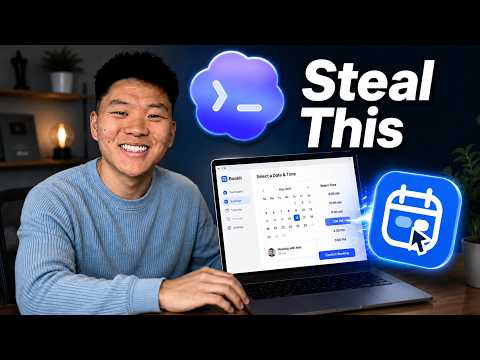
I Cloned Calendly and Now It’s Free Forever
핵심 요약
수조 원대 기업 가치를 지닌 캘린들리(Calendly)의 핵심 기능을 단 1주일 만에 프롬프트 몇 개로 복제한 'Snag Time'을 직접 개발했다. 워크스페이스 관리부터 일정 예약 및 Stripe 연동 유료 결제까지 지원하며, Vercel 등을 통해 완전 무료로 배포·운영할 수 있다. 제작자는 이 프로젝트의 소스코드와 셋업 가이드를 무료 커뮤니티를 통해 전면 무료로 배포하고 있다.
주요 포인트
- **초고속 클론 개발**: 막대한 투자를 유치한 캘린들리 및 Cal.com의 핵심 기능을 프롬프트 기반으로 1주일 만에 구현함.
- **주요 기능 완비**: 예약 대시보드, 일정 변경/취소, 워크스페이스 브랜딩, 팀원 권한 관리 등 필수 기능 지원.
- **유료 예약 지원**: Stripe 결제 시스템을 연동하여 유료 상담 및 세션 예약 기능 처리 가능.
- **무료 호스팅 및 배포**: 로컬 환경뿐만 아니라 Vercel, Google 계정 연동, 백엔드 DB 구성을 통해 영구 무료 운영 가능.
- **무료 리소스 배포**: 제작자의 Skool 커뮤니티 리소스를 통해 하루 만에 구축 가능한 전체 셋업 가이드 제공.
So, I just built a clone of Kalanley and it's completely free for me to run. Kalanley has an estimated valuation of $3 billion and competitors like Cal.com have a valuation of around $150 million and have raised tens of millions of dollars. But in one week, I was able to clone the core functionality of it with just a few prompts and now it's free for me. So, in this video, I'm going to show you guys what I built, give it away for free, show you how you can get set up for yourself, and talk about exactly how much this cost me to actually build. So, let's not waste any time and just get straight into today's video. All right, so just going to jump right in. This is called Snag Time. You can see that we have to sign in. I've already created an account. So, I'm just going to go ahead and log in. And now we are at the home screen. You can see we have an overview. We have my branding. This is my workspace called Upet AI. I can see my upcoming bookings. I can see how many I've had this month. I can see how many hours I've booked and my published links. So, how many different event types I have. I can see all of my upcoming bookings right here. And I could go in find some more details. I could also reschedule or cancel. So, if you guys have used Calendarly or stuff like cal.com before, it's very similar. You're getting the same functionality. I can come down here to my settings and I can change my workspace, my password, my profile photo. I can invite other members and have different like permissions whether they're a member or an admin. And I can set up my workspace, image, colors, descriptions, stuff like that. So, what I thought I'd show you real quick is what is an event type and how does that actually work? So, if I go to my event types, you can see that I have a revenue strategy session. I have this test and all of these were pretty much made during testing. I've made a few of these myself, like the paid sculping session. Yes, I've connected Stripe. So you can actually book in paid calls. And then we've got this regular strategy call. So let me first just do a simple one real quick. And by the way, all of these say local host, meaning right now I'm running all of this locally. So in order to actually get this up and running so you can send, you know, links to clients and have them book in, you'd have to put it to some sort of public domain on let's just say Versell and then all of this is fully working. So when you get in here to set this up, you're just going to have to connect things like your Google account, a backend database, and your Stripe account. And if you guys want to get this for free, all you have to do is go to my free school community, which looks like this. The link is in the description. You'll go to classroom, and you'll go to all YouTube resources. You'll be able to grab the whole setup guide in there and get set up in one day. So, anyways, let me go ahead and copy this link, open up a new tab, paste that in here, and show you guys what that actually looks like. This booking flow, you can see that I've set up for this to be the description. I could obviously change that. This is coming through as our custom branding, and I'm going to be able to go ahead and choose a date and time. So, this is live to my real calendar. I'll go over to the actual calendar. We're looking at Friday. You can see that I can only book in from 2 to about 3 and then from 4 to 4:30. And this is the real calendar. So, you can see all day tomorrow is blocked off in the morning and then 3:00 to 4 is blocked off. So, this is coming through as accurate. And then if I go to like next week, there's nothing at all next week besides these two calls. Um 9:00 a.m. to 11:00 a.m. on Monday. And if we come back into the booking link and I go to Monday, you should see that we don't have 9:00 a.m. up until 11:00 a.m. So, this is syncing live. If I was to on Monday real quick put in some big block from like 1 till 6. We'll just call this busy. We go back over here. Oops, wrong tab. We just give this a quick refresh. And now if I go to Monday, all those times are blocked off. So it's syncing live. Anyways, I'm going to go to Friday and I'm just going to book in for 4:15. And we're going to move on to the next screen. This is where we can obviously put in some information. So I'm just going to put in Nate uh sample email address, which actually is real. We're just going to call this test and test. And then we can go ahead and review the booking. This page though, I could ask more questions when I create an event type. So, I'll show you guys that in a sec. But then I'm able to just go ahead and confirm the booking. And then this is the screen that the user who is confirming or setting up the booking sees. They get a little notification. We can reschedule or cancel it. And then if I go back to my calendar and I go to Friday, we now see that we have the strategy call with that email address that put that in right there. And then right her